Ordering Data through the Web App
Once an end user has been registered and approved via KYC, resellers can place Catalog or Tasking orders on their behalf through either the Web App. This ensures the data is properly licensed to the end user, with full traceability and compliance with SatVu’s reseller policies.
This tutorial outlines:
- Placing Catalog orders for end users through the SatVu Web App
- Placing Tasking orders for end users through the SatVu Web App
- Viewing and managing orders, including seeing the assigned end user
Ordering Flows in the Web App
For both Catalog and Tasking orders, the reseller ordering process follows the same core flow as standard users. More information on the core flow can be found in the Catalog Tutorial, Standard Tasking Tutorial and Assured Tasking Tutorial pages.
However, there are key differences to ensure proper licensing attribution.:
Selecting a reseller contract
Orders placed on behalf of third-party end users must be submitted under a Reseller contract. If you are unsure if you have a reseller agreement in place with SatVu, please contact your SatVu representative.
Providing end user information with the order
You must assign an individual end user to each order. This user will be the licensee of the data, and the SatVu End User License Agreement will apply to them.
In the catalog order flow:
- Select your reseller contract from the dashboard
- Access the catalog and search for images
- Add the selected images to your cart
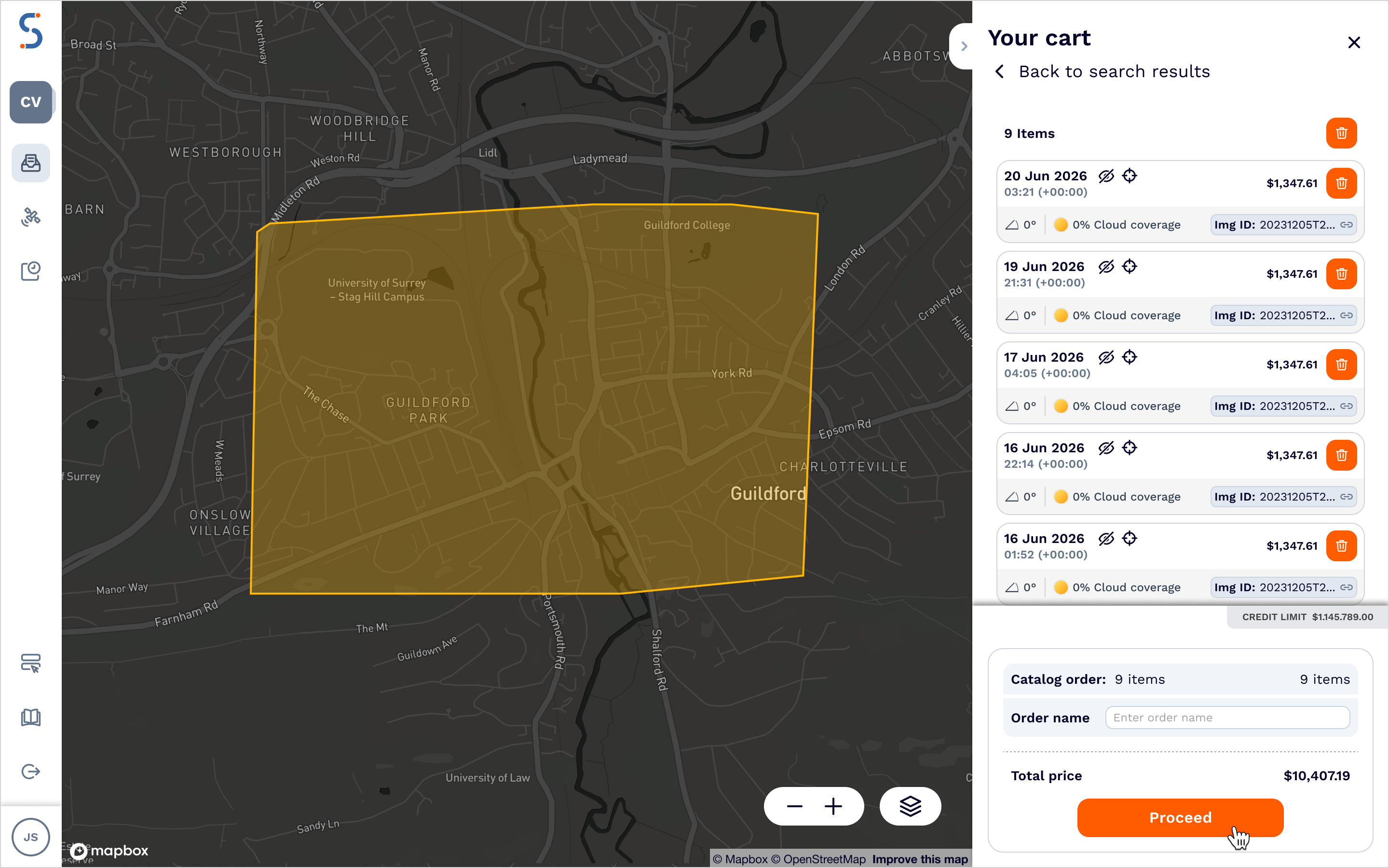
- In your cart, review the images and click Proceed
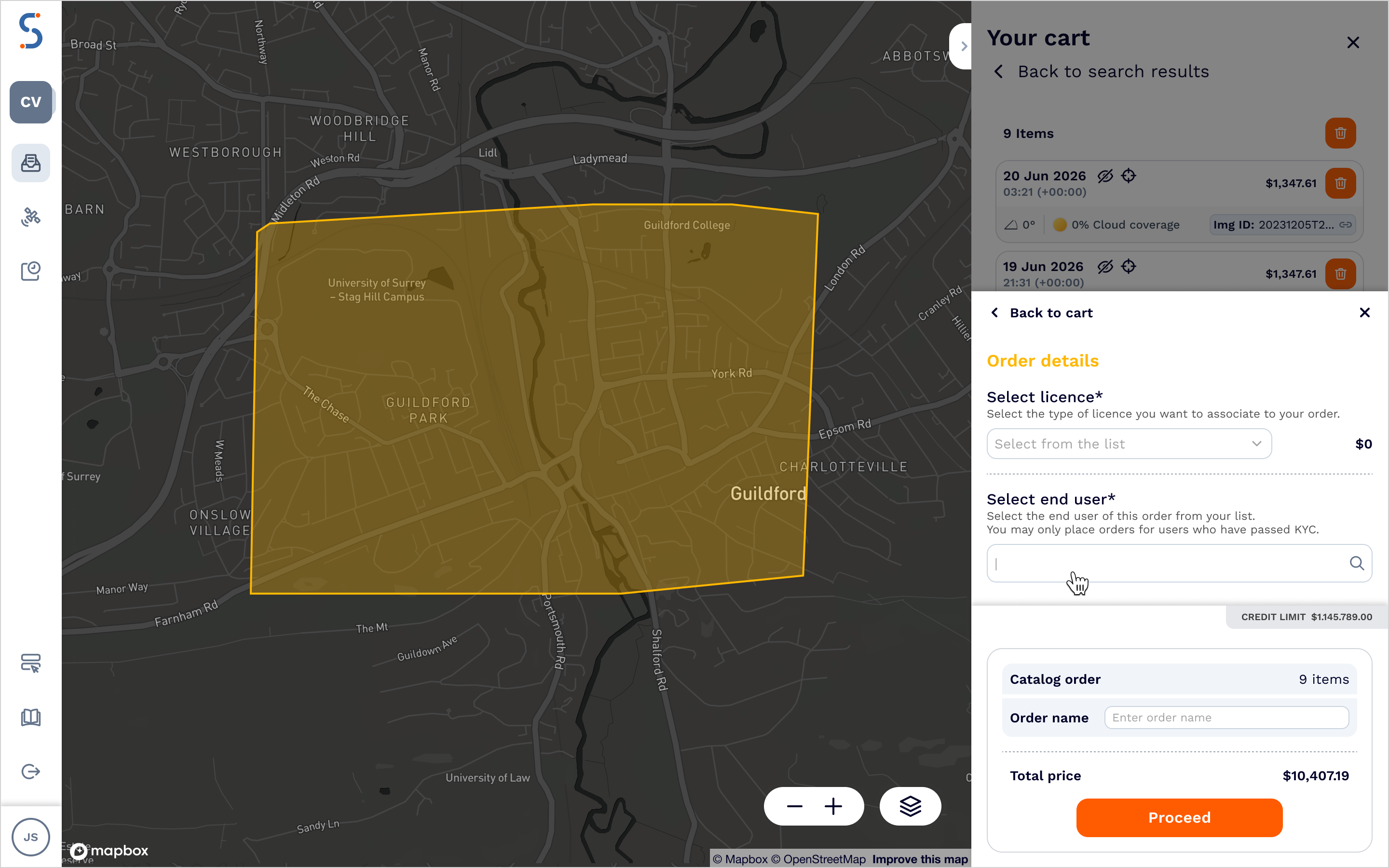
- On the Order Details page, you'll see a prompt to assign the end user. Begin typing their name or company to search your approved users list.
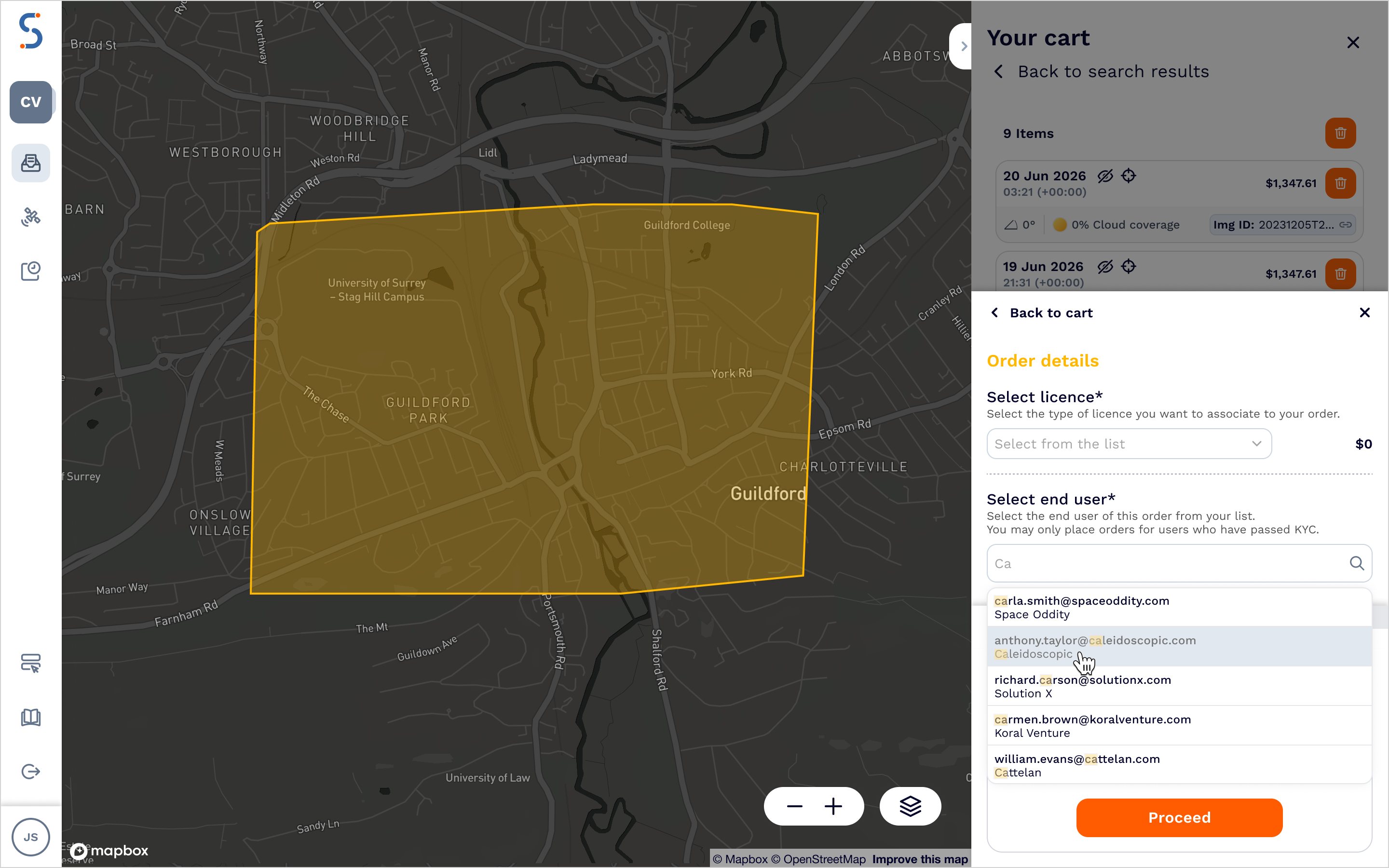
- Select the end user for the order from the list
- Continue to the order summary and confirm the details to complete your purchase
In the tasking order flow:
- Select your reseller contract from the dashboard
- Access the tasking page, and select your tasking product
- Select the Tasking parameters as outlined in Standard Tasking Tutorial and Assured Tasking Tutorial
- On the Order Details page, you'll see a prompt to assign the end user. Begin typing their name or company to search your approved users list.
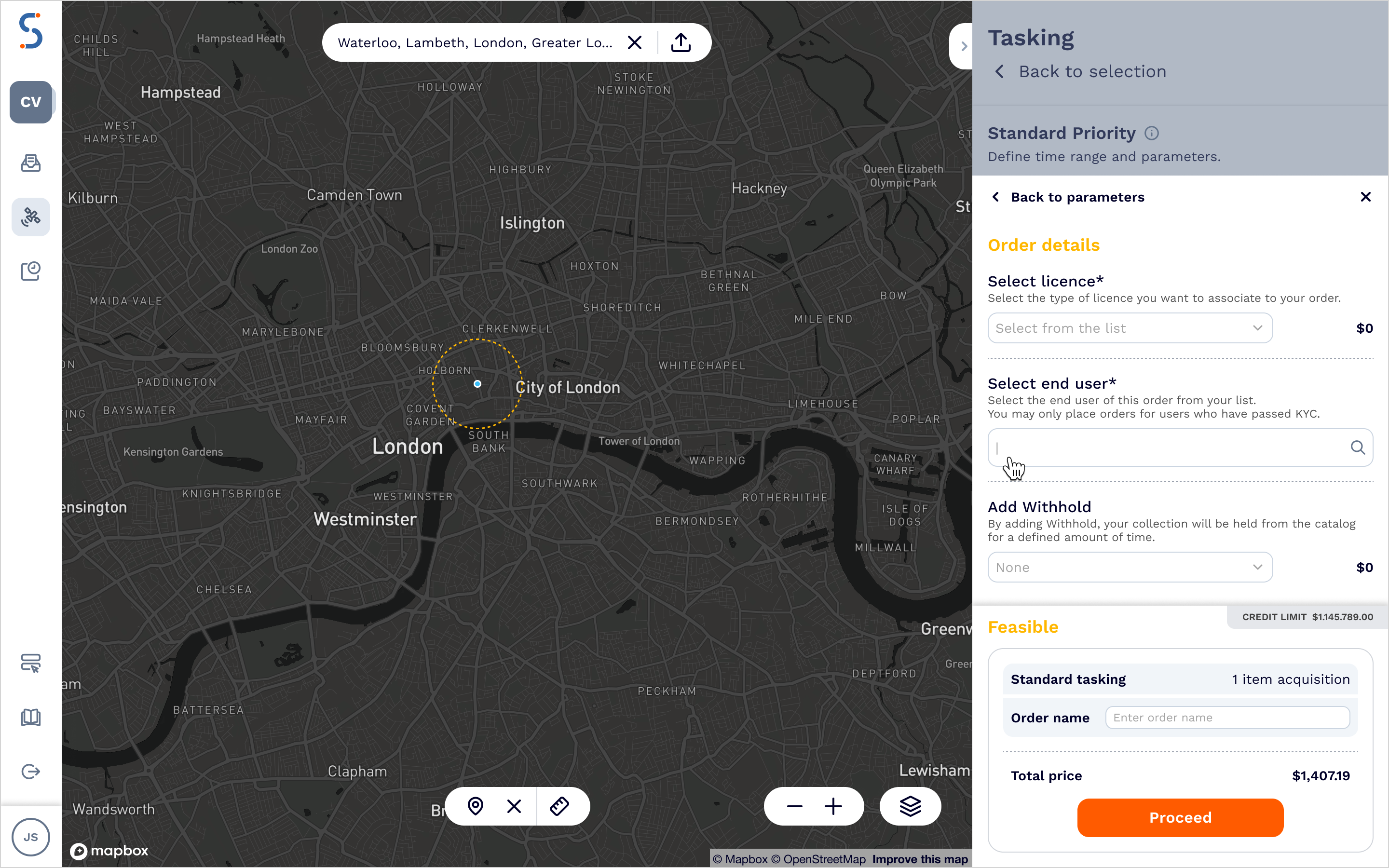
- Select the end user for the order from the list
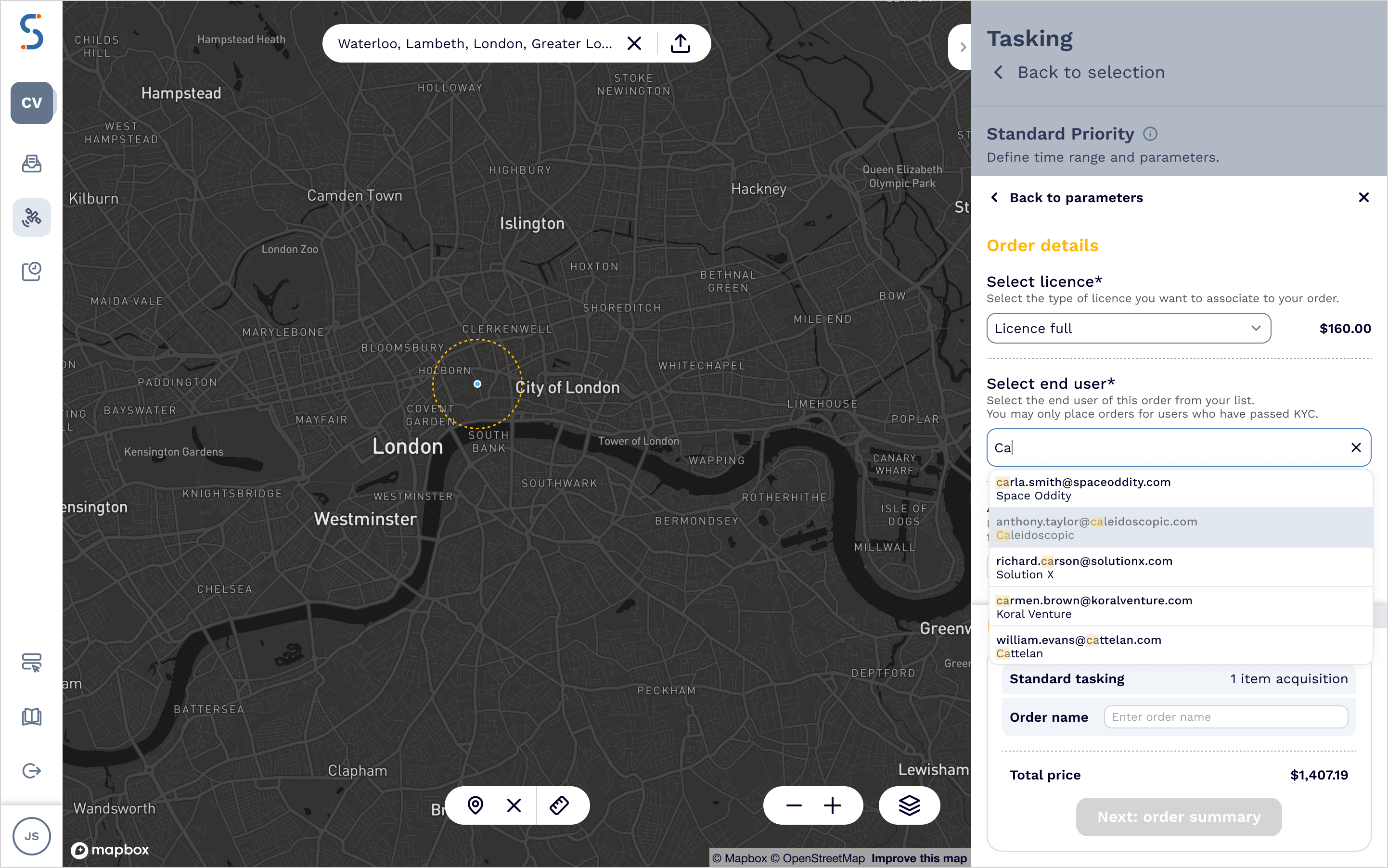
- Add any additional order add-ons such as catalog withholds
- Continue to the order summary and confirm the details to complete your purchase
Note: Orders can only be placed for users once the KYC process has been approved. If the request has not yet been processed, or has been rejected an order cannot be made for that end user. Non-approved users will not appear in the list when placing an order.
Managing orders in the Web App
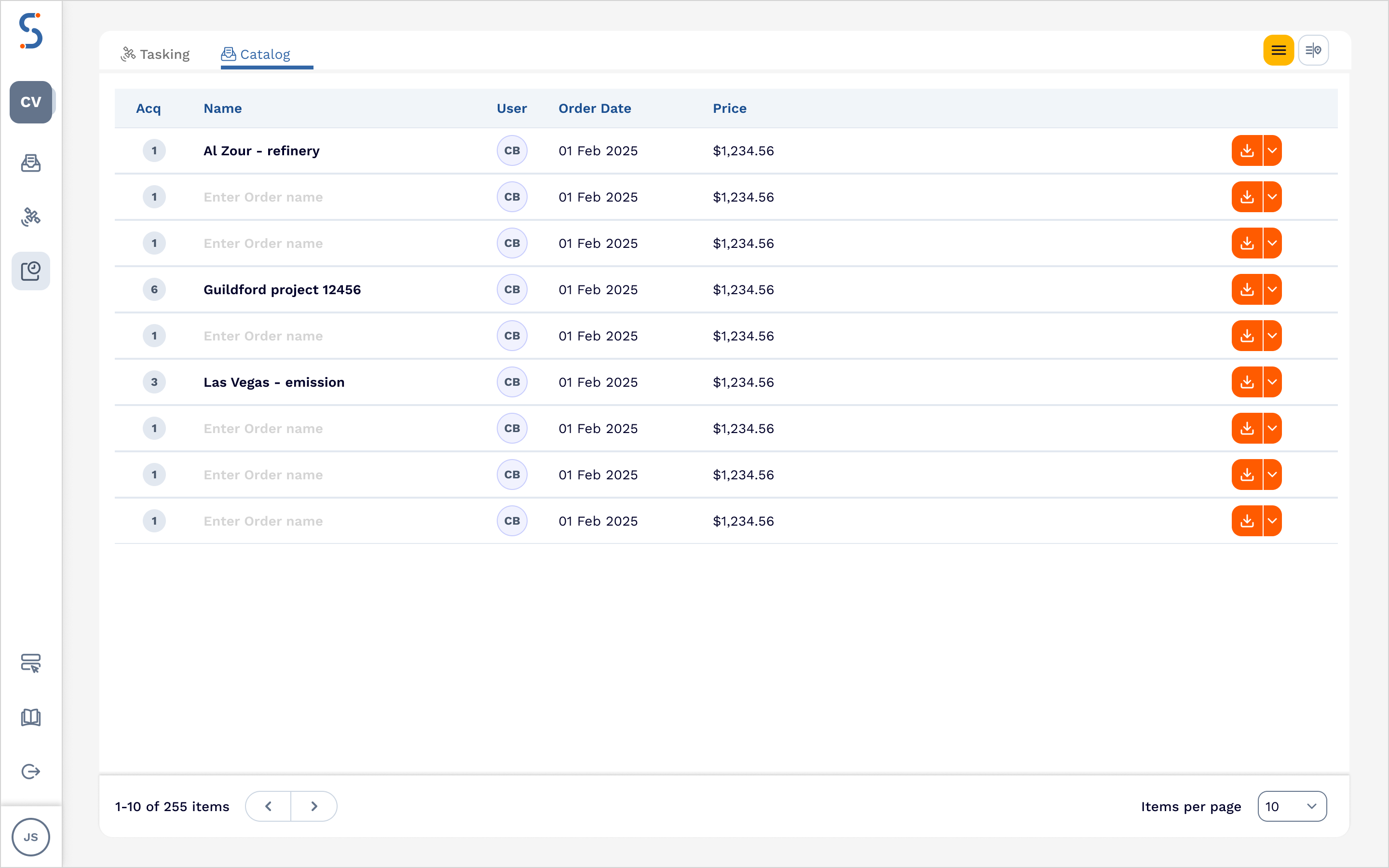
For any order placed under a Reseller contract, the assigned end user will appear in the Orders list within the Web App.