Recurring Series Tasking Tutorial
Standard tasking supports the ability to create a series of recurring standard tasking orders over the same location. Read this tutorial if you are looking for a step-by-step guide on how to create a recurring tasking order series, monitor its status and download the available data.
In this guide, you will learn how to:
- Select a contract to use for your order
- Select the standard tasking product
- Select recurring ordering and set a recurrence schedule
- Provide order parameters for the series
- Place a recurring tasking order series
- Monitor and manage the order series
Dashboard contract selection
The tasking flow starts with selecting a contract that provides you access to the tasking section of the SatVu platform. More information about what the contract includes is available under Accessing SatVu platform.
You can see all your available contracts on the Dashboard page. Every contract is defined by its name and unique identifier.
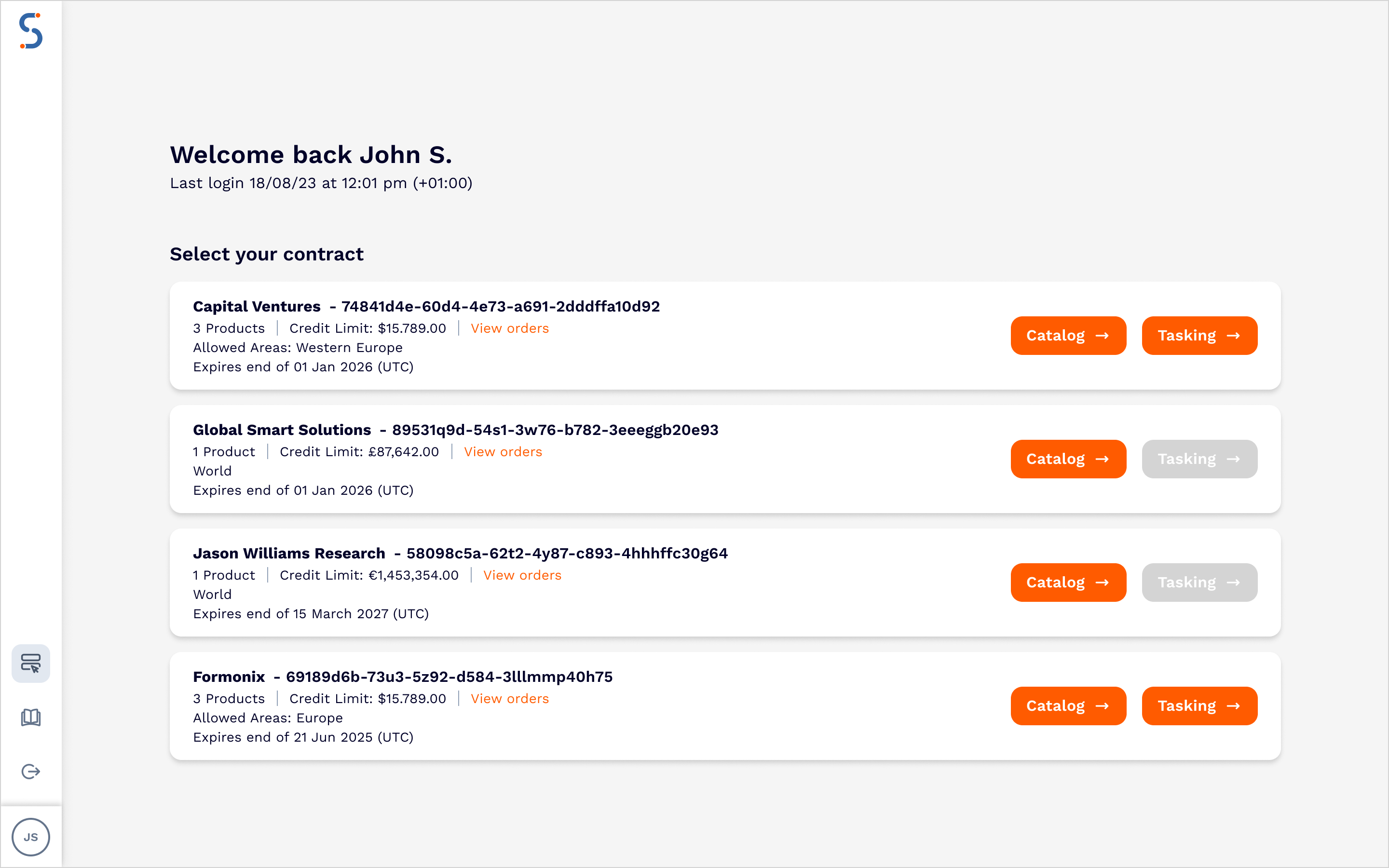
Please note that in order to access tasking, your contract must have at least one tasking product enabled. Speak to your SatVu contact if the "Tasking" option is not available.
Once you click on "Tasking →", the web app opens a tasking page. From here you can choose which tasking product you want to access. You will see the selected contract on any page within the web app.
Data ordering
When you open the Tasking tab, you will see the map interface. There is an expandable sidebar which allows you to select the tasking product and set tasking order parameters.
The process of creating a recurring tasking order series consists of the following steps:
- Provide the location of the tasking order
- Select the Standard Tasking product
- Select recurring ordering
- Set up tasking parameters and recurrence schedule
- Retrieve the price and place the order series
Providing location
Use the map to browse to the desired location of the tasking order. You can zoom in on a location by using the map tools, or search for a specific location or coordinates through the search field at the top.
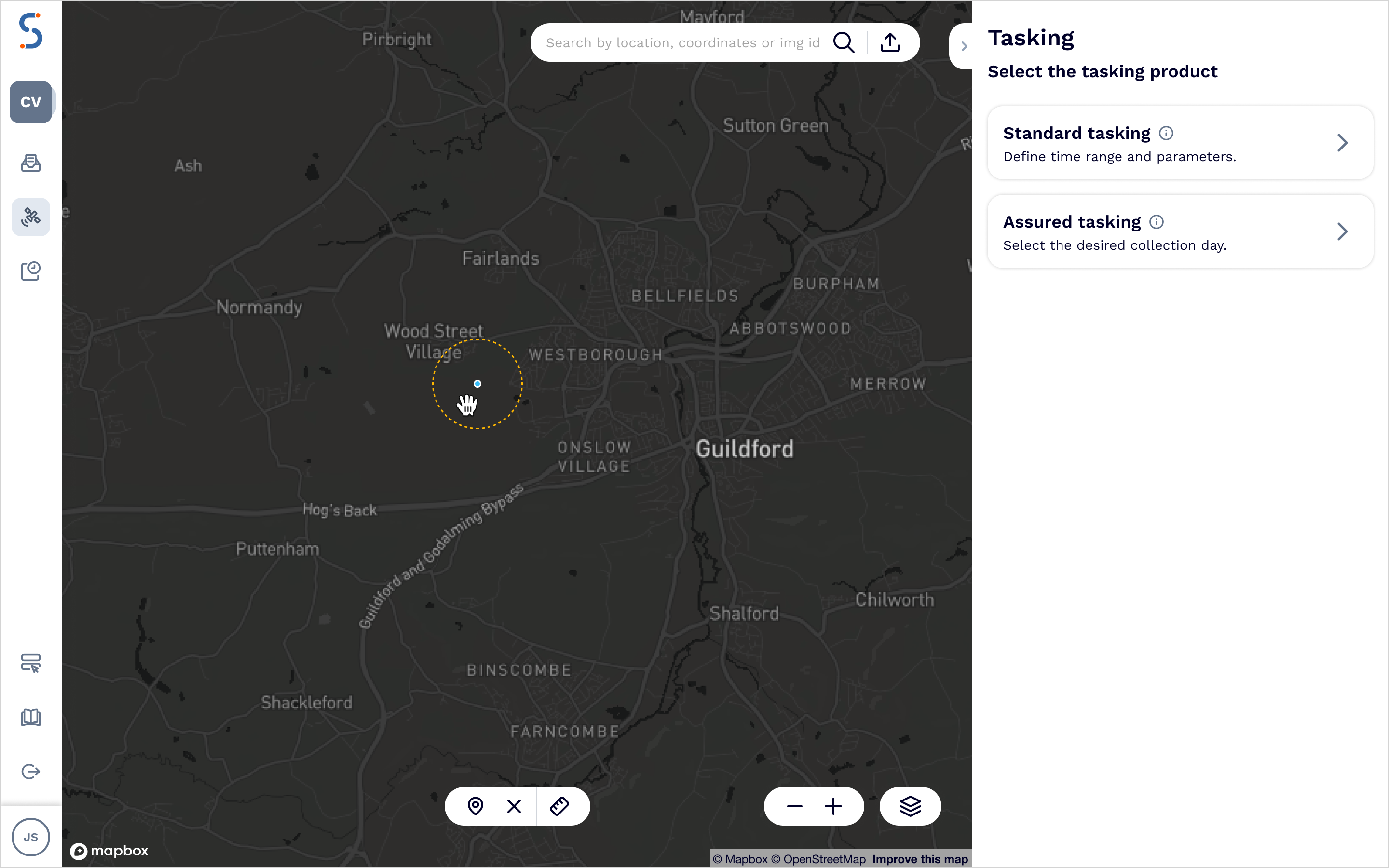
Tasking orders require you to specify a point geometry. To do so, select the POI icon in the map tools and select the point on the map you wish to task for.
Selecting the Standard Tasking product
Once a POI has been placed on the map, the tasking panel will open. From here you can select the Standard Tasking product.
Please note that in order to access Standard Tasking, your contract must have the Standard Tasking product enabled. Speak to your SatVu contact if you would like to add Standard Tasking to your product selection.
Selecting a recurring order
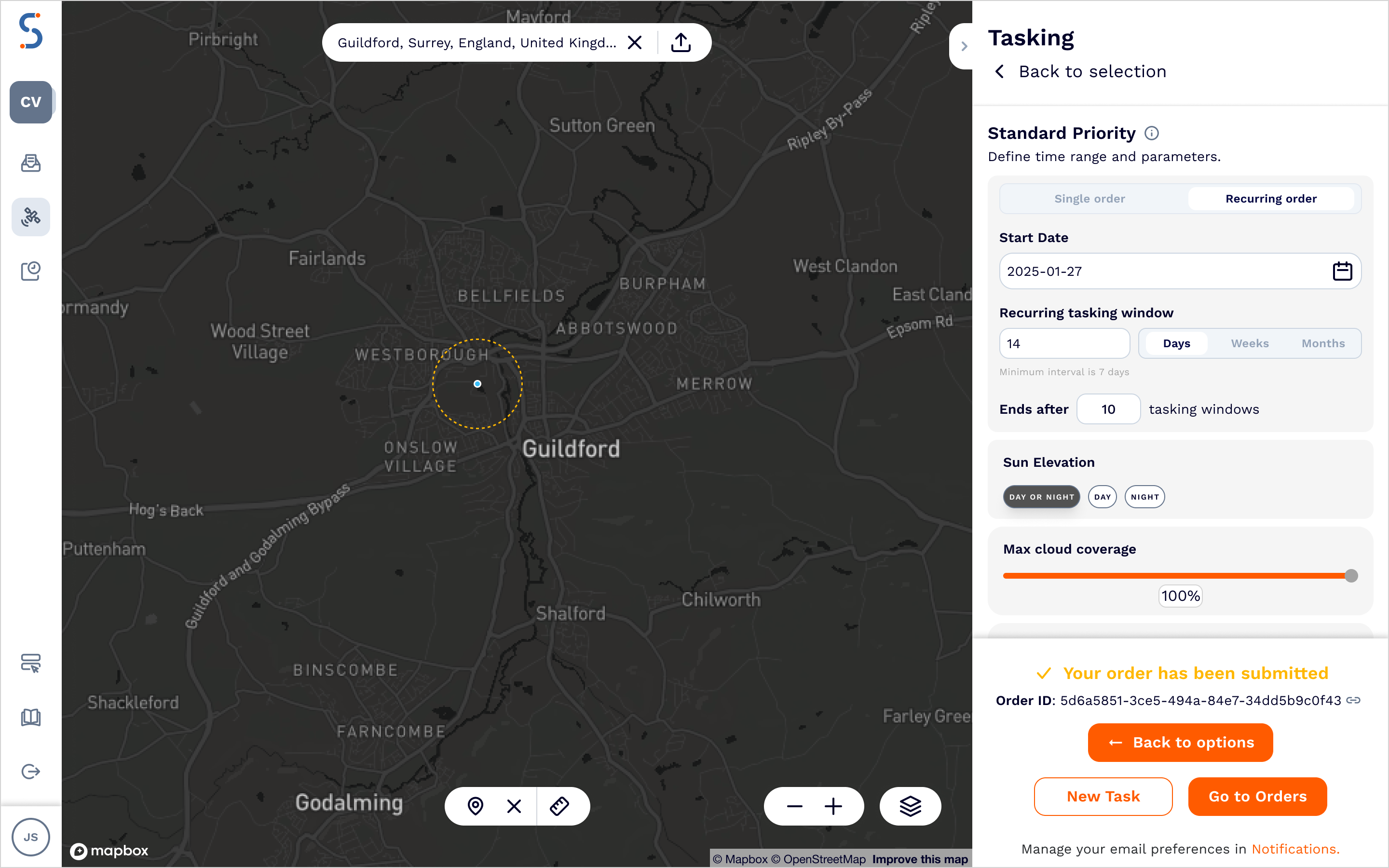
Within the Standard Tasking product panel, you will see an option to select a recurring order. When recurring ordering is selected, the tasking parameters panel will expand to include additional fields for configuring the recurrence schedule.
For a recurring order, you also specify the start date for the first tasking window in the series. Each subsequent occurrence will use a window of the same length, starting immediately after the end of the previous window.
Whilst we endeavour to capture your order at the earliest possible opportunity, there is no enforced minimum gap between captures across order boundaries. If a capture happens near the end of one window and again near the start of the next, two images may be delivered in close succession even with a longer recurrence period.
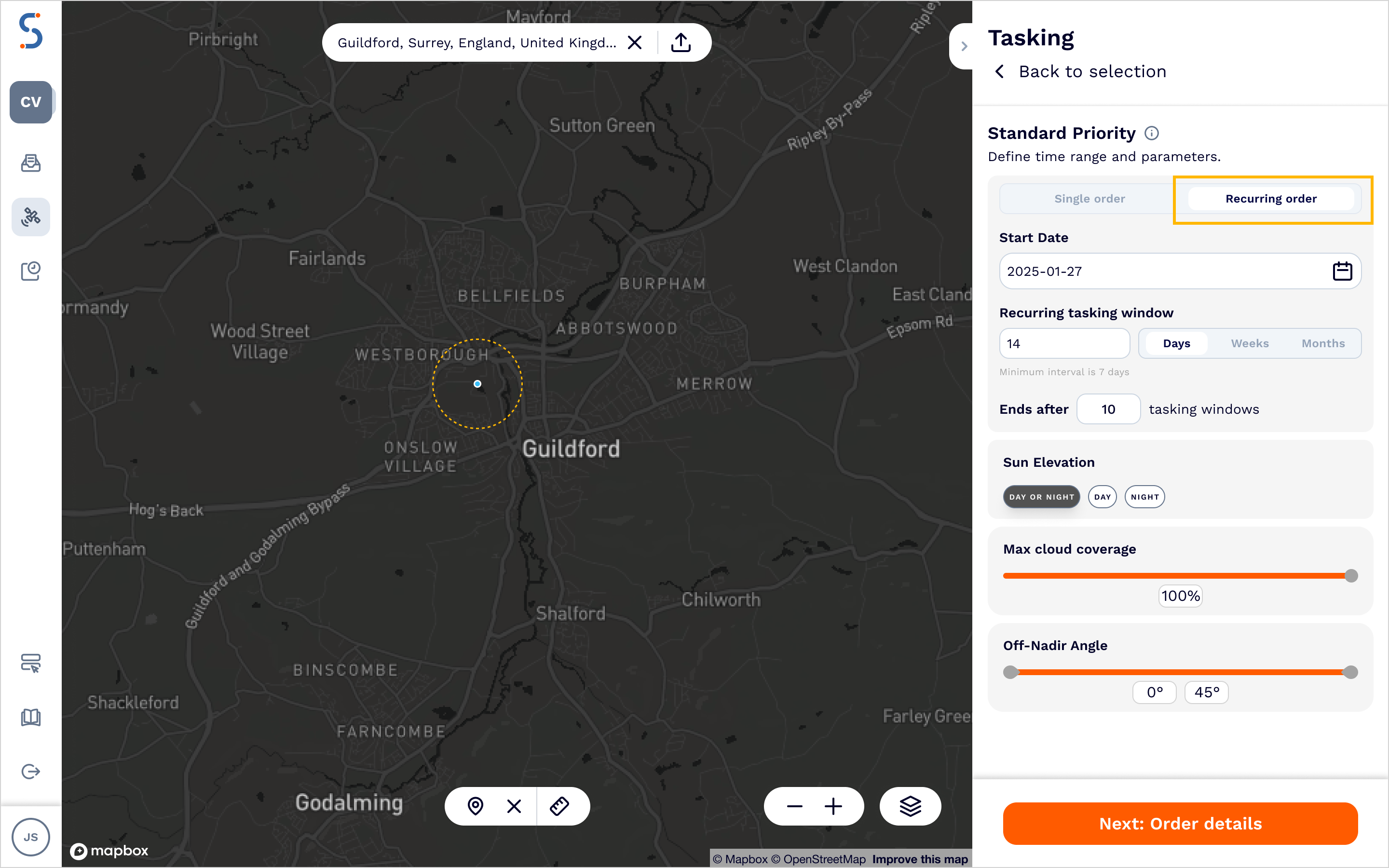
The additional parameters for recurring orders are:
| Parameter | Details |
|---|---|
| Recurrence period | The length of each tasking window. Supported values are a number of days (e.g. every 7 days), weeks (e.g. every 2 weeks) or months (e.g. every 1 month) |
| Number of orders | The total number of tasking windows to create in the series. For example, a recurrence of 1 month with 6 order will create tasking windows once a month for 6 months |
The first occurrence uses the tasking window you specify when placing the order. Each subsequent order opens a window of the same length, shifted forward by one recurrence period. The number of orders defines how many tasking windows are created, not how many images are guaranteed to be delivered.
Setting up tasking parameters
The side panel also allows you to select the tasking parameters for the order series. You can specify the imagery mode, maximum cloud coverage and a range of off-nadir angle values which will be set as parameters for each of the orders within the series. More information about these parameters is provided on the Tasking order page.
Order add-ons
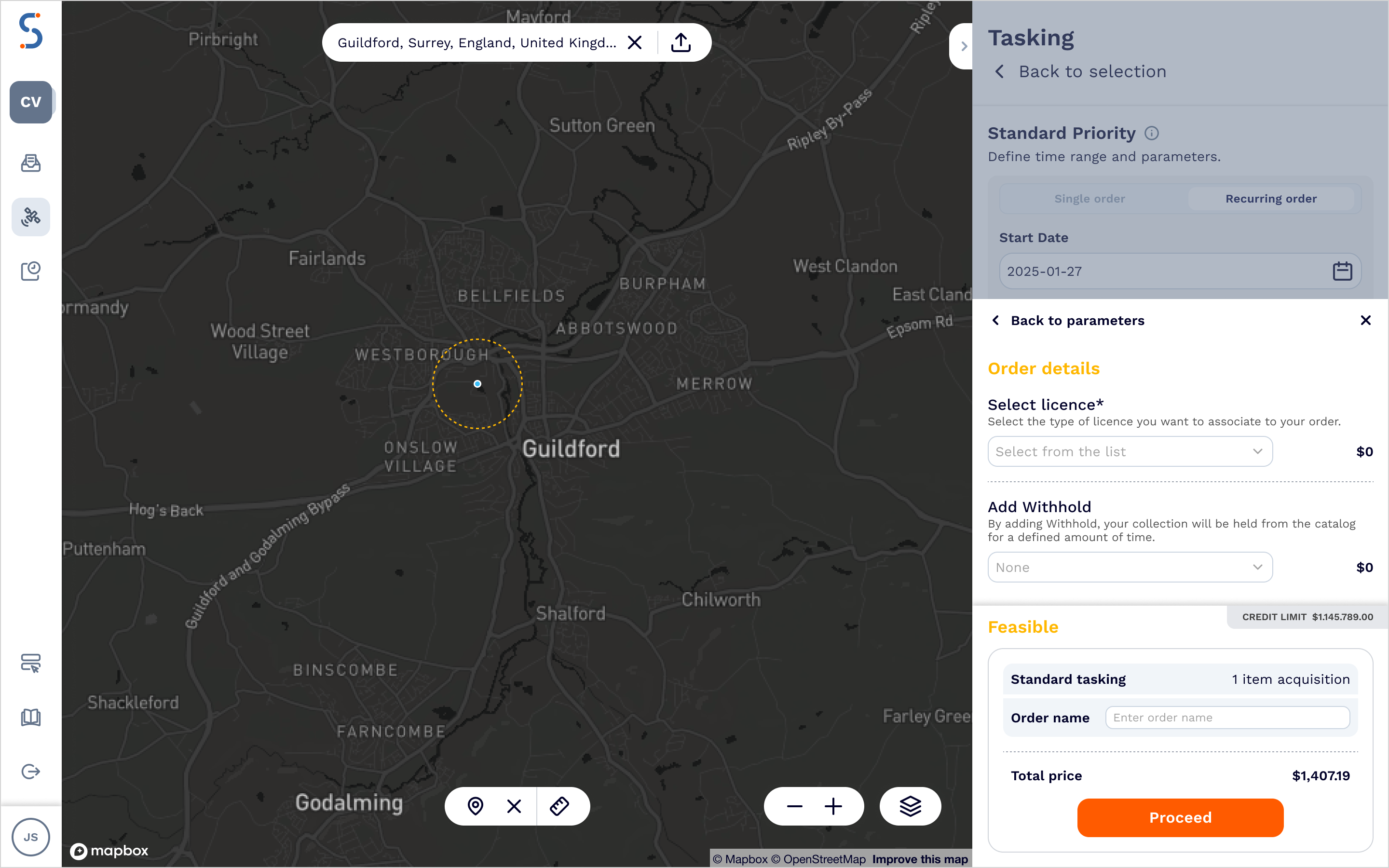
Before placing an order, you can select some additional order parameters. The available options for each parameter are specified in your contract, with a price uplift associated with each option. The same add-on settings apply to every order in the series.
| Parameter | Details |
|---|---|
| Licence level | Select the licence level to be associated with the order. The terms of use for each licence level are defined within the End User Licence Agreement (EULA) |
| Withhold | Select whether you wish to withhold an image from the catalog for a selected period of time |
| Order name | A user defined name to assign to the series for easy identification |
Placing the order series
Once you confirm the add-ons you will be able to view a summary of the order, along with the total price of the order series. As soon as you click "Purchase now", the recurring order series is placed and all individual orders are scheduled.
Credits are reserved for the full series at the point of ordering. Each individual order's credit is redeemed when that order is successfully fulfilled. If an order is not captured, the reserved credit for that window is returned to your credit limit. Any orders which are not fulfilled will not be billed.
Tracking and managing a recurring order series
The Orders page gives you an overview of all orders placed under a given contract. For Tasking orders, there are two tabs available to view individual tasking orders or to view recurring orders series.
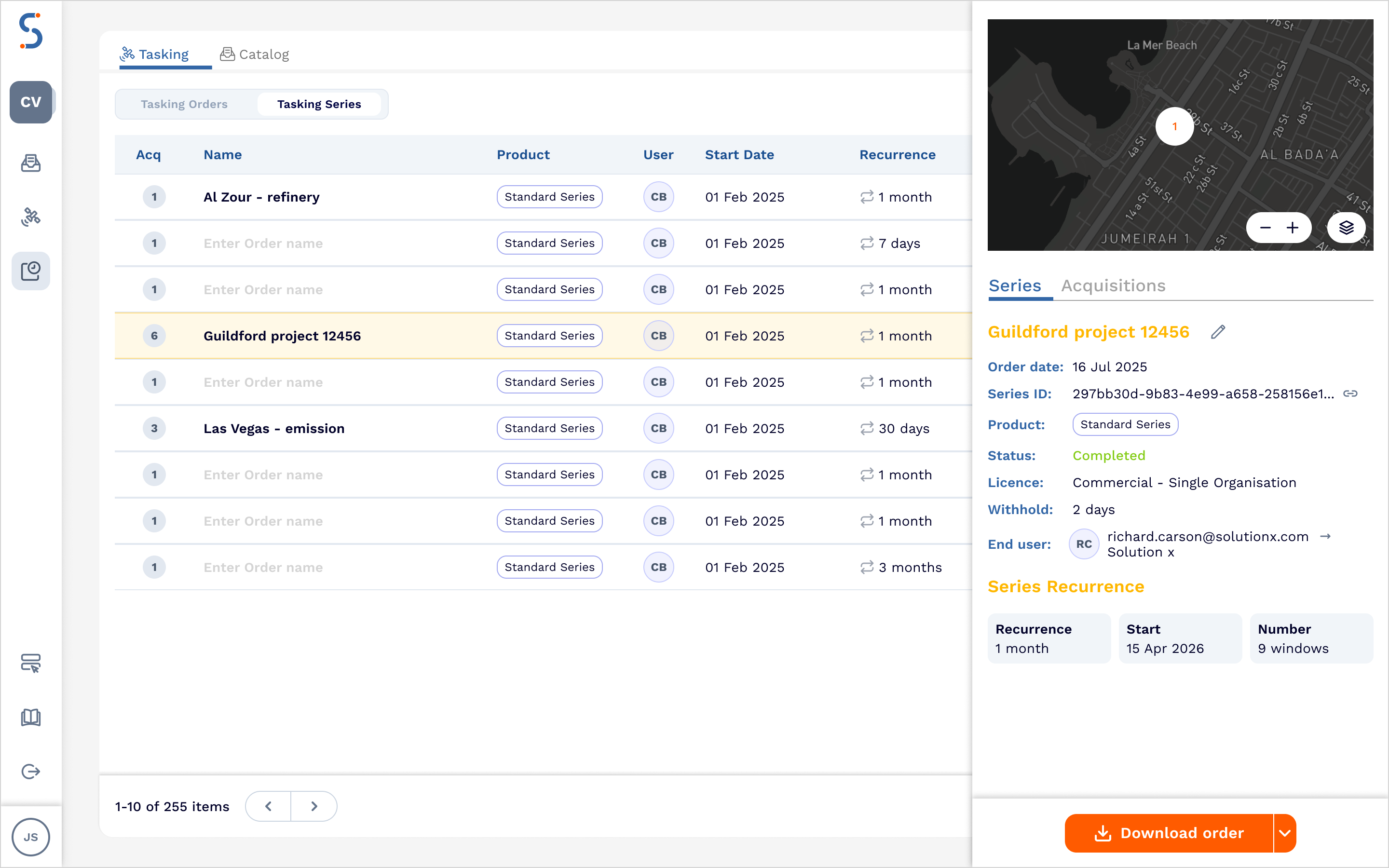
Selecting a series will open the side panel, displaying the details of the series — including its recurrence schedule, parameters and overall status.
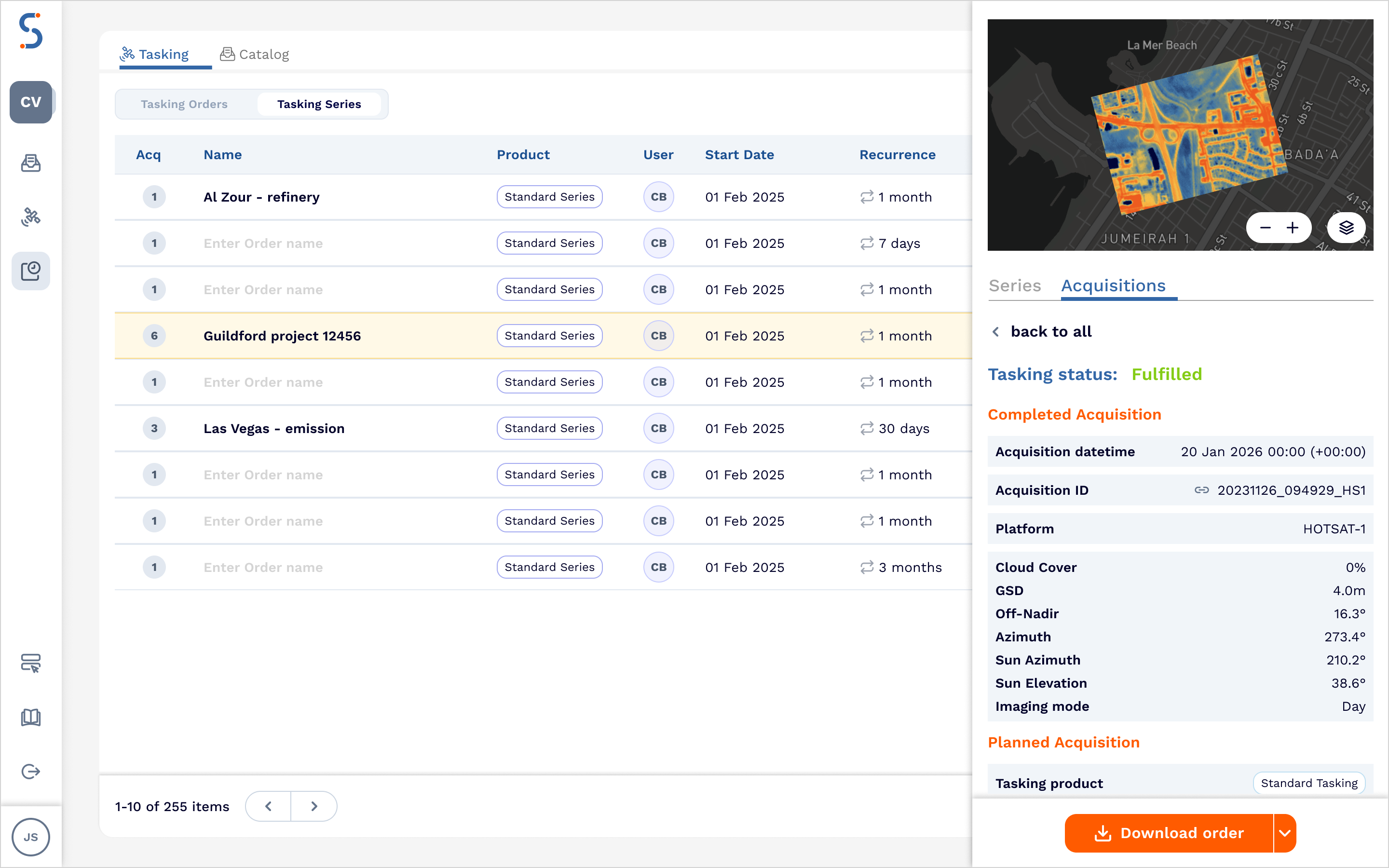
Within the side panel, the Acquisitions tab lists all of the individual orders within the series. Statuses are updated automatically as each individual order progresses through the capture and delivery pipeline. More information about individual order statuses is available under Tasking order.
For any fulfilled orders, you can click into the individual order to view the details of the captured image, including acquisition parameters and scene information.
Downloading data
You can download fulfilled imagery from a series in two ways:
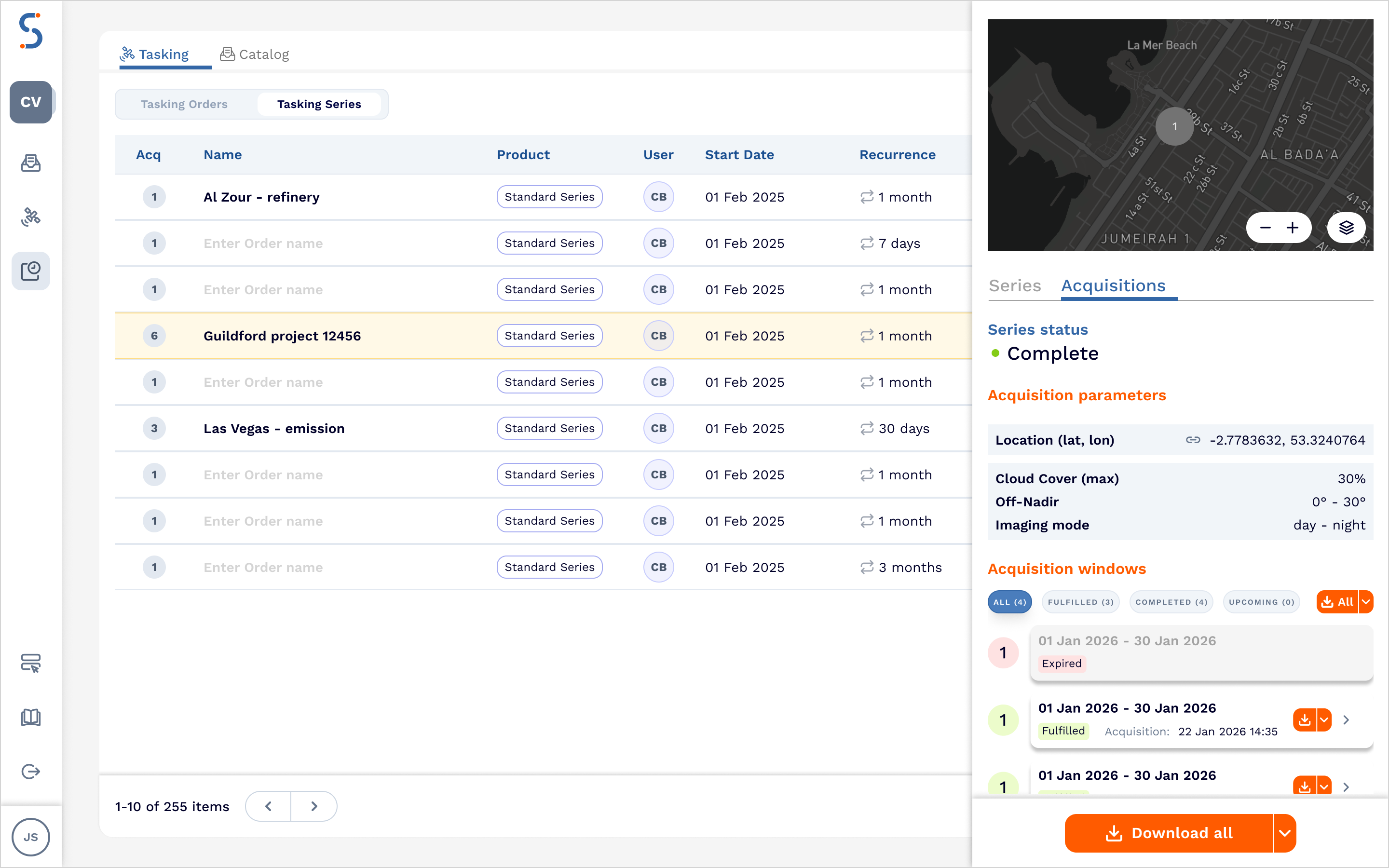
- Download all — use the Download all button on the series to download all fulfilled orders within the series as a single archive.
- Download individual orders — within the Acquisitions tab, each fulfilled order has its own Download button, allowing you to retrieve individual captures as they are delivered without waiting for the full series to complete.
Modifying or Cancelling a recurring series
For recurring order series, modification and cancellation applies to all future orders at once. Any orders in the series that have already been fulfilled are not affected, and any reserved credit for unfulfilled orders is returned to your credit limit upon cancellation.